How to Migrate From Jira to Taskzin
A step-by-step guide to migrating from Jira, covering the decisions to make before importing, exactly what transfers and what does not, the eight-step process, how to handle workflows and epics, and common migration mistakes.

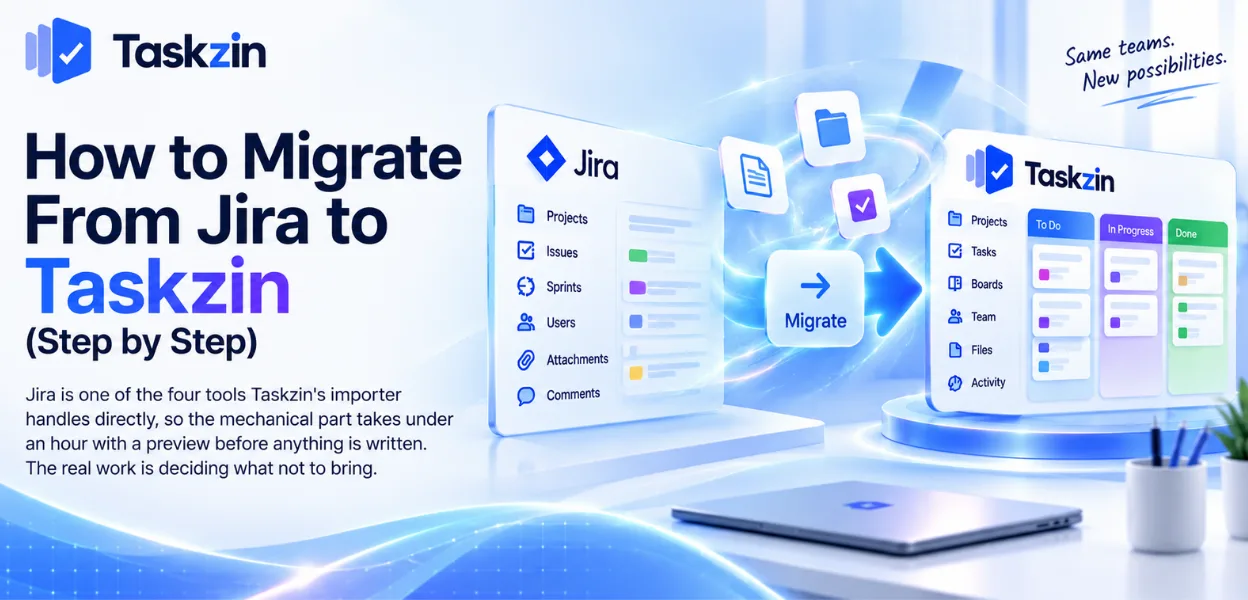
Jira is one of the four tools Taskzin's importer handles directly — alongside ClickUp, Asana and Trello — so the mechanical part takes under an hour with a preview before anything is written and a rollback afterwards if it is wrong. The work that actually takes time is deciding what not to bring. Your Jira instance is untouched throughout, so there is no point of no return until you choose one.
Most of this guide is about the decisions around the import rather than the import itself, because that is where migrations succeed or fail.
Before You Start
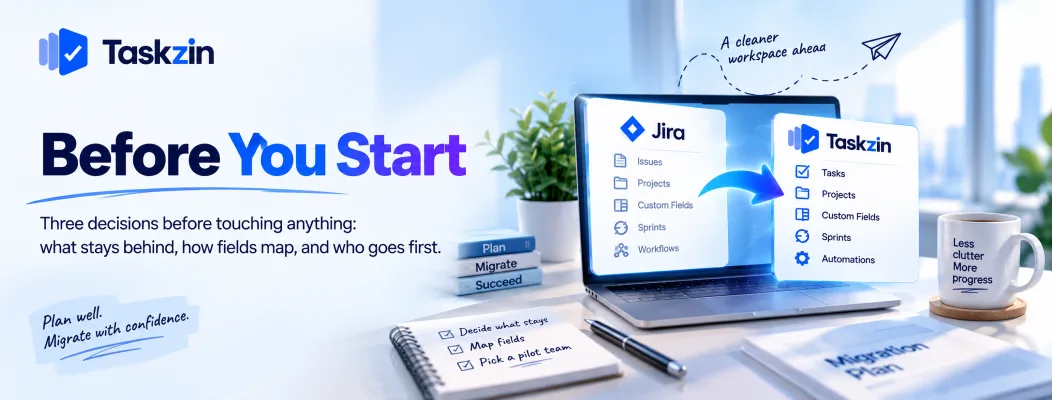
Three decisions before touching anything: what stays behind, how fields map, and who goes first.
Decide what you are not bringing
This is the most valuable hour of the migration. Most Jira instances have accumulated years of custom fields nobody fills in, statuses nobody uses, and thousands of closed issues from projects that ended.
Bringing all of it across recreates the problem you are leaving. Go through the list and mark what is genuinely needed — typically it is far less than expected. Closed issues older than a year are the usual candidate for exclusion, since the Jira export remains available if anyone ever needs them.
Agree the mapping
Decide before importing how Jira concepts map: which issue types become what, which statuses map to which columns, which custom fields survive.
Doing this in advance means the preview is something you are checking rather than something you are interpreting. Twenty minutes on a whiteboard saves an afternoon of confusion.
Pick a pilot team
One team, one or two projects. Not the whole organisation.
The pilot surfaces the problems that no amount of planning finds, and it does so at a scale where fixing them is cheap. It also produces people who can help everyone else, which matters more than any documentation you write.
What Transfers and What Does Not
Set expectations before the import rather than discovering gaps afterwards.
Jira concept Transfers? Becomes Issues (stories, tasks, bugs) Yes Tasks Summary, description Yes Title, description Assignee and reporter Yes Owner and creator, where users match Status Yes, via your mapping Column or status
Priority Yes Priority field Due dates and start dates Yes Dates Comments Yes Comment thread on the task Attachments Yes Task attachments Sub-tasks Yes Subtasks Custom fields Yes, the ones you select Custom fields Epics Yes Projects or parent tasks, your choice Sprints Yes, current and recent Sprints Labels and components Yes Tags Issue links and dependencies Yes Dependencies
Workflow schemes and statuses
Rebuilt as statuses and
Rebuild automations deliberately
Permission and notification schemes No Rebuilt with roles and custom roles JQL filters and dashboards No Rebuilt as saved views and dashboard widgets Automation rules No Rebuilt as no-code automations
Historical velocity
Recalculates from imported sprint data Marketplace app data No Depends entirely on the app
The Migration, Step by Step
Eight steps. Steps 1–3 are the ones that take real thought.
Step What you do Time 1 Decide scope — which projects, which date range, which custom fields 1 hour 2 Agree the mapping of issue types, statuses and fields 30 min 3 Match users — make sure the people list lines up on both sides 20 min 4
After the Import
and select the projects 5 min 5 Review the preview — check counts, sample tasks, field mapping 20 min 6 Run the import Minutes to an hour, by volume 7
Verify before announcing
telling anyone 30 min 8 Rebuild automations and saved views 1–2 hours
The import previews everything before writing, leaves your Jira instance untouched, and can be rolled back if the result is not what you expected — so step 6 is reversible.
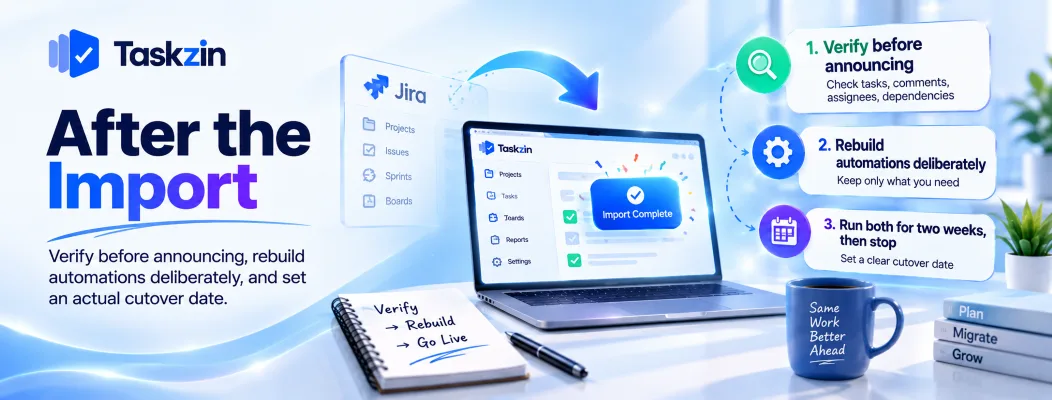
After the Import Verify before announcing, rebuild automations deliberately, and set an actual cutover date.
Verify before announcing Before telling the team the migration is done, check: does the task count match, do a sample of tasks have their comments and attachments, are assignees correct, did dependencies come across, do the sprint dates look right.
Thirty minutes. Announcing first and finding problems afterwards costs you the team's confidence at exactly the moment you need it.
Rebuild automations deliberately Automation rules do not transfer, and that is an opportunity rather than a loss.
Most Jira instances carry rules that made sense once and now fire pointlessly. Rebuild only the ones you actually rely on — usually a fraction of what exists. Taskzin includes no-code automations on all plans, so you are not gated behind a tier to restore the important ones.
Run both for two weeks, then stop
Keep Jira readable but stop creating work in it from day one. Two weeks of parallel access is enough for anyone to retrieve something that did not come across.
Then set a date and stop. Indefinite parallel running is the most common way migrations fail — people drift back, neither system is trusted, and the migration is abandoned six months later without anyone deciding to abandon it.
Handling the Awkward Parts
Workflows, epics and velocity history need decisions rather than mapping.
Workflow schemes and statuses Jira workflow schemes with conditions, validators and post-functions have no direct equivalent, and rebuilding them exactly is usually the wrong instinct.
Ask what each rule actually prevents. Most exist to stop something that stopped happening years ago. Rebuild the ones that matter as statuses plus automation rules, and let the rest go — this is where teams get the biggest simplification from a migration.
Epics, versions and components
Epics can become projects or parent tasks depending on how you use them. If your epics are large themes spanning quarters, projects fit better; if they are containers for related stories, parent tasks fit better.
Components generally become tags. Versions map to milestones or to a custom field, depending on whether you release on a schedule.
Historical velocity Velocity recalculates from imported sprint data, so recent history survives if you bring recent sprints across.
If several years of velocity history matters to you, export it from Jira separately before you cut over.
You will not reconstruct it afterwards, and it is the one thing teams reliably regret not keeping.
Common Migration Mistakes
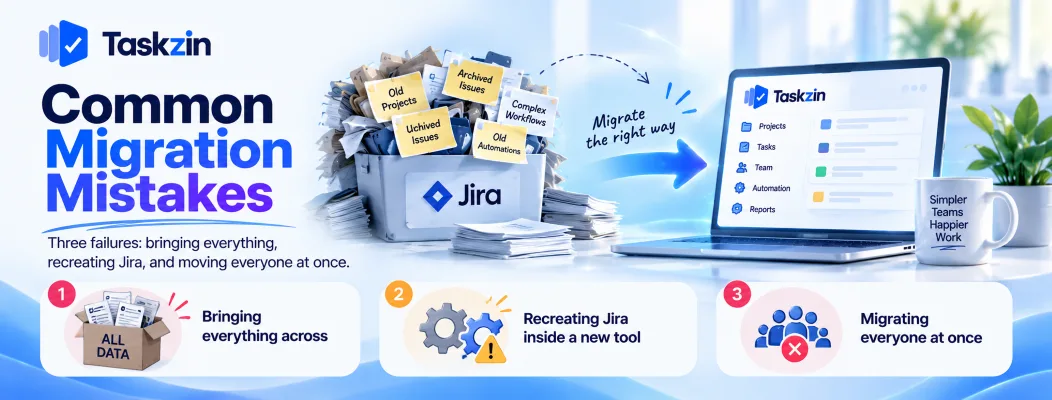
Three failures: bringing everything, recreating Jira, and moving everyone at once.
Bringing everything across
Importing eight years of closed issues, sixty custom fields and every archived project reproduces the clutter you were escaping.
Bring what you use. The Jira export remains available for anything historical, and in practice almost nobody looks at it.
Recreating Jira inside a new tool
Rebuilding every workflow condition, every permission scheme and every mandatory field means you have changed tools and kept the friction.
Start simpler than your Jira setup and add constraints only when something actually goes wrong.
Most teams discover they needed a fraction of what they had.
Migrating everyone at once
A whole-organisation cutover means every problem lands simultaneously, on people who did not choose it, in their first week.
Pilot with one team, fix what surfaces, then move the rest with people who have already done it.
Migrations rarely get a second attempt, so the first one should be small enough to go well.
Frequently asked
How long does a Jira migration take?
The import itself runs in under an hour for most instances. The decisions around it — scope, mapping, rebuilding automations — take a day or two, and a pilot adds a fortnight before the full rollout.
Does the import affect our Jira instance?
No. The import reads from Jira and leaves it completely untouched, so you can run it, review the result, and still have your original instance exactly as it was.
What happens to Jira comments and attachments?
Both transfer. Comments arrive as threads on the corresponding task and attachments come across with it. Check a sample after importing rather than assuming.
Can you undo an import?
Yes — the import previews everything before writing and can be rolled back afterwards. Combined with Jira being untouched, there is no irreversible step until you decide to stop using Jira.
What happens to Jira workflows?
Workflow schemes do not transfer. Rebuild the statuses you need and recreate genuinely necessary rules as automations — most teams find they need far fewer than they had.
Should you migrate closed issues?
Usually only recent ones. Closed issues older than about a year are rarely opened again, and your Jira export remains available if anything is needed.
How do you migrate a large Jira instance?
Project by project, starting with one pilot team. Scope aggressively, agree the field mapping in advance, and set a firm date to stop creating work in Jira rather than running both indefinitely.
Binita Ray is a content writer at Taskzin, creating insightful and practical content on task management, team collaboration, productivity, workflow optimization, and SaaS solutions. She focuses on helping businesses, teams, and professionals simplify their work processes, improve efficiency, and make better use of modern productivity tools.
All posts by Binita Ray

Comments